> ## Documentation Index
> Fetch the complete documentation index at: https://docs.kepler.ai/llms.txt
> Use this file to discover all available pages before exploring further.
# Example workflows
> See the Kepler connector end to end in real conversations.
These examples show how a conversation flows once the connector is set up. You ask in natural language; your assistant calls the right Kepler [tools](/mcp/tools) and brings back cited results. The tool names below are shown only to make the mechanics clear. You never type them.
## Ask a research question
> Use Kepler to explain what drove Costco's gross margin over the last three fiscal years.
Your assistant calls `run_financial_research` and gets back a `conversation_id`. It then calls `get_run_result` to wait, streaming progress as Kepler reads the 10-K filings.
A few minutes later the answer arrives, with each margin figure linked to the filing it came from and a sourcing report on coverage.
> Now compare that to Walmart for the same period.
Your assistant calls `continue_research` on the same conversation, and Kepler keeps full context and extends the analysis.
## Build a model and export it
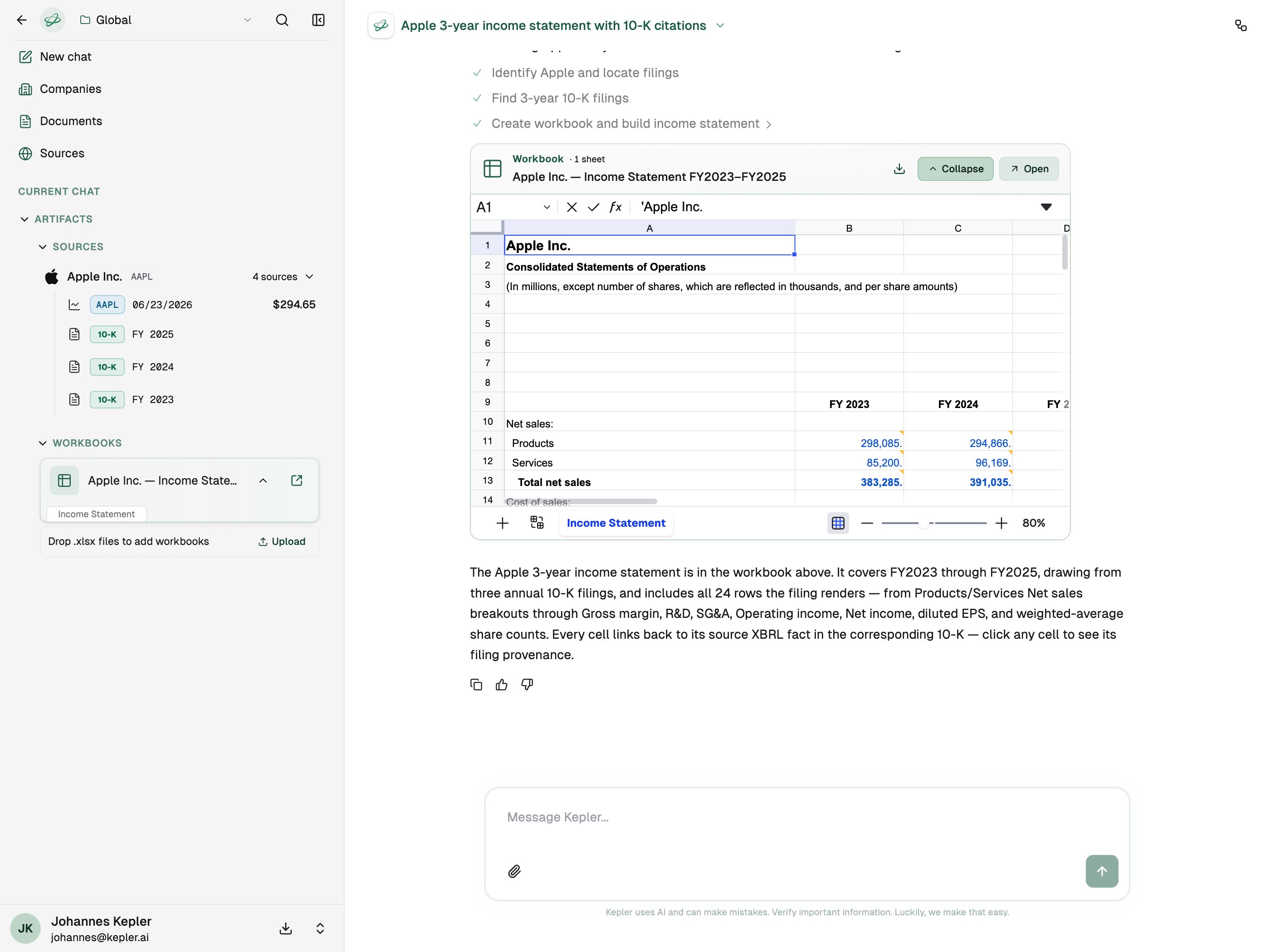
> Use Kepler to build a 3-year annual income statement for Apple, each line cited to its 10-K.
The result includes a workbook with a download link and an in-app link. Every cell traces back to a source.
 > Give me the income statement sheet as CSV.
Your assistant calls `get_workbook_data` and returns the full sheet as CSV for use in your own tools.
## Check coverage before a deep dive
Availability questions don't need a full run. They return instantly through `lookup_company`.
> Use Kepler to check whether Nvidia's latest 10-K and Q3 earnings call are available.
Your assistant lists the filings and transcripts Kepler has on file, with forms, dates, and fiscal periods, a quick way to confirm coverage before asking for analysis.
## Pick up an earlier run
> Find the Netflix model I built yesterday and add a fiscal 2025 column.
Your assistant calls `list_recent_runs` to locate the conversation, then `continue_research` to extend it, with no need to start over.
## Tips for better results
"Apple's last three fiscal years" beats "Apple recently." Specific periods give Kepler a clear target and make citations easier to verify.
For models, describe the statement type, segments, and formatting up front, since it's faster than reshaping afterward.
Kepler reads primary sources rather than summarizing from memory. The wait is the work; your assistant streams progress while it goes.
Follow-ups stay in the same conversation, so Kepler remembers prior results. Start a new request only when you switch topics.
> Give me the income statement sheet as CSV.
Your assistant calls `get_workbook_data` and returns the full sheet as CSV for use in your own tools.
## Check coverage before a deep dive
Availability questions don't need a full run. They return instantly through `lookup_company`.
> Use Kepler to check whether Nvidia's latest 10-K and Q3 earnings call are available.
Your assistant lists the filings and transcripts Kepler has on file, with forms, dates, and fiscal periods, a quick way to confirm coverage before asking for analysis.
## Pick up an earlier run
> Find the Netflix model I built yesterday and add a fiscal 2025 column.
Your assistant calls `list_recent_runs` to locate the conversation, then `continue_research` to extend it, with no need to start over.
## Tips for better results
"Apple's last three fiscal years" beats "Apple recently." Specific periods give Kepler a clear target and make citations easier to verify.
For models, describe the statement type, segments, and formatting up front, since it's faster than reshaping afterward.
Kepler reads primary sources rather than summarizing from memory. The wait is the work; your assistant streams progress while it goes.
Follow-ups stay in the same conversation, so Kepler remembers prior results. Start a new request only when you switch topics.