> ## Documentation Index
> Fetch the complete documentation index at: https://docs.kepler.ai/llms.txt
> Use this file to discover all available pages before exploring further.
# Quickstart
> From zero to your first citation-backed answer.
This guide takes you from signing in to reading your first sourced result. You can use Kepler in two ways: directly in the web app, or through the [MCP connector](/mcp/overview) inside an AI assistant like Claude. This quickstart uses the web app.
## Prerequisites
* A Kepler account. If you don't have one, reach out to your Kepler contact for access.
* A company you want to research: a name (`Netflix`), a ticker (`NFLX`), or an SEC CIK.
## Run your first research
Open [app.kepler.ai](https://app.kepler.ai) and sign in with your Kepler account.
In the chat, ask a financial research question in plain language. Be specific about the company and the periods you care about.
```text theme={null}
What drove the change in Costco's gross margin over the last three fiscal years?
```
Kepler finds the relevant filings and transcripts, extracts the figures, and writes an answer. A run typically takes a few minutes, and you'll see live progress as it reads sources and builds results.
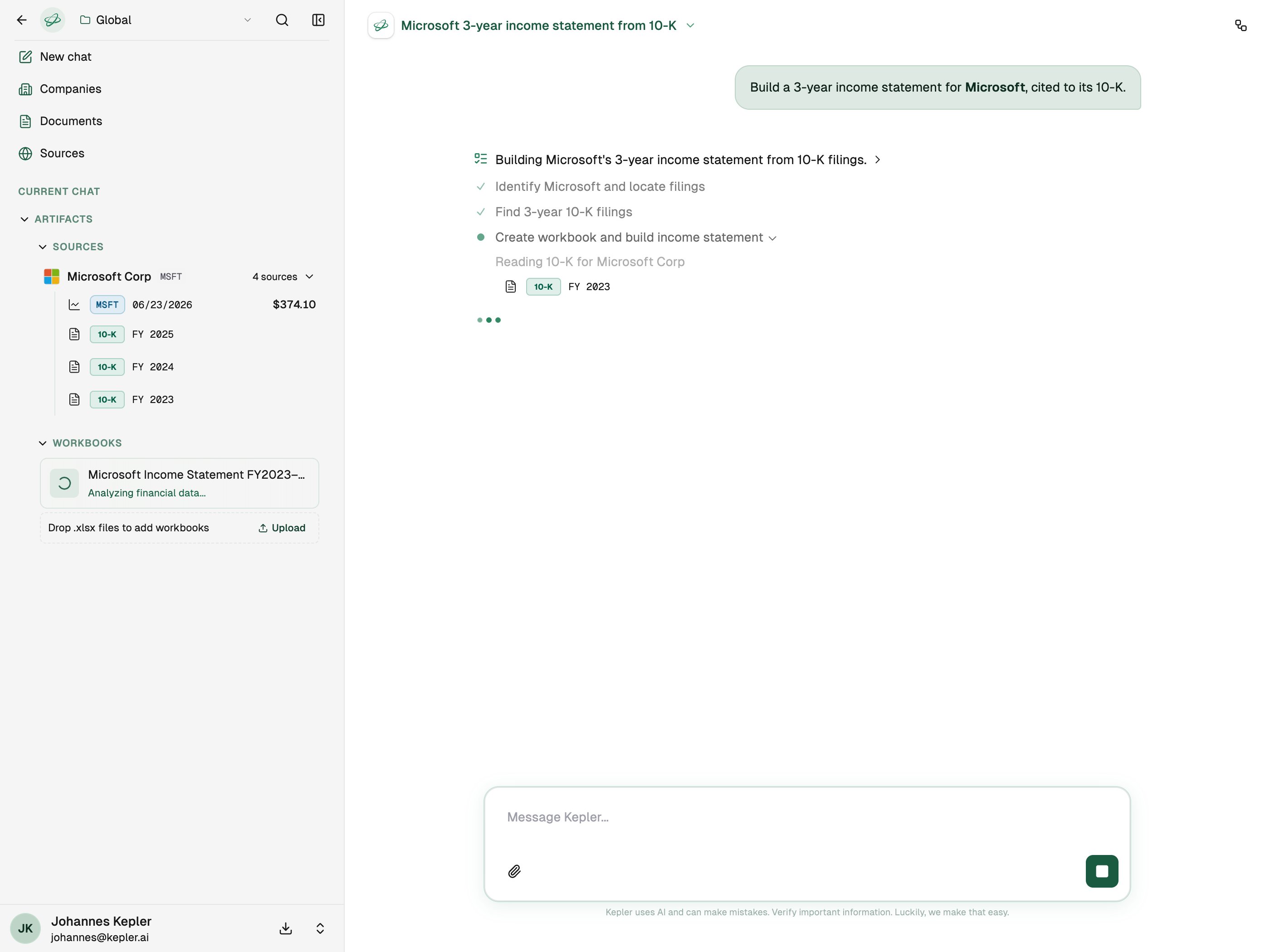 Every figure in the answer links back to the filing or transcript it came from. Open a citation to see the original source, and review the sourcing report to confirm coverage.
 ## Ask for a model
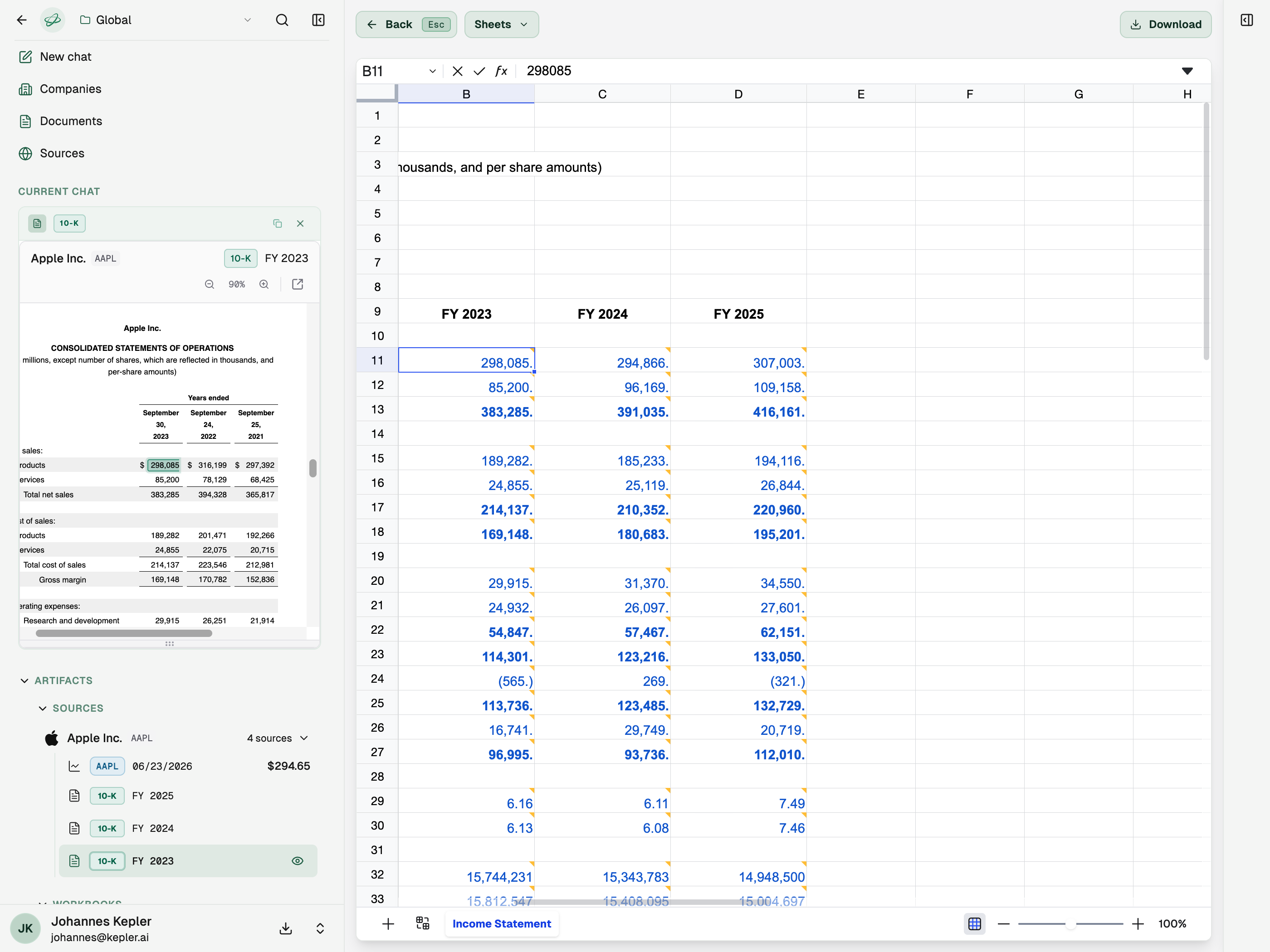
Kepler can return a spreadsheet workbook, not just prose. Try:
```text theme={null}
Build a 3-year annual income statement for Apple, with each line cited to its 10-K.
```
The result includes a workbook you can open in the app or download as `.xlsx`. Every cell traces back to a source.
## Next steps
Bring Kepler into Claude, ChatGPT, or Cursor with the MCP connector.
Step-by-step setup for each MCP client.
Need help or access? Reach out to your Kepler contact, or email [support@kepler.ai](mailto:support@kepler.ai).
## Ask for a model
Kepler can return a spreadsheet workbook, not just prose. Try:
```text theme={null}
Build a 3-year annual income statement for Apple, with each line cited to its 10-K.
```
The result includes a workbook you can open in the app or download as `.xlsx`. Every cell traces back to a source.
## Next steps
Bring Kepler into Claude, ChatGPT, or Cursor with the MCP connector.
Step-by-step setup for each MCP client.
Need help or access? Reach out to your Kepler contact, or email [support@kepler.ai](mailto:support@kepler.ai).