

Connector URL
Use this URL wherever your client asks for a remote MCP server or custom connector: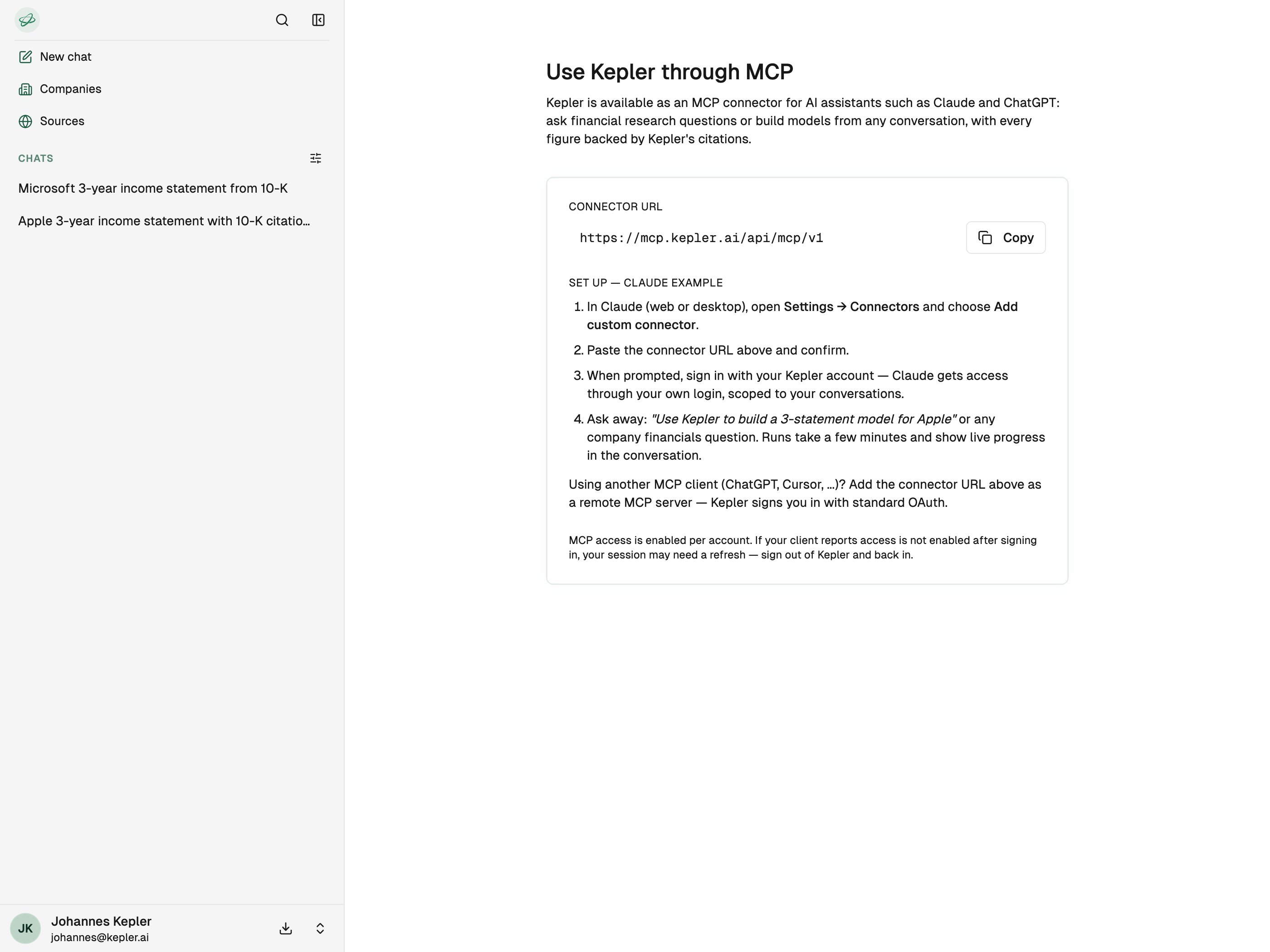
The MCP connector page in the Kepler app, with the connector URL and setup steps.
Prerequisites
- A Kepler account with MCP access enabled. See access if your client reports access isn’t enabled.
- An MCP-capable client (Claude, ChatGPT, Cursor, VS Code, or another that supports remote MCP servers).
Set up your client
- Claude
- Claude Code
- ChatGPT
- Cursor
- VS Code
- Other clients
Works in Claude on the web and in the Claude desktop app.
1
Open connector settings
Go to Settings → Connectors and choose Add custom connector.
2
Add the connector URL
Paste
https://mcp.kepler.ai/api/mcp/v1 and confirm.3
Sign in to Kepler
When prompted, sign in with your Kepler account. Claude gets access through your own login, scoped to your conversations.
4
Start researching
Ask a financial question or request a model, for example “Use Kepler to build a 3-statement model for Apple.” Runs take a few minutes and show live progress in the conversation.
Verify the connection
Once connected, ask your assistant a quick availability question that doesn’t need a full run:lookup_company tool and returns instantly, a fast way to confirm the connector is working before kicking off a longer research run.
Troubleshooting
My client says MCP access isn't enabled
My client says MCP access isn't enabled
MCP access is granted per account. If access isn’t enabled after you sign in, ask your Kepler contact to enable it, then sign out of Kepler and back in so your session refreshes.
The OAuth sign-in didn't appear
The OAuth sign-in didn't appear
Make sure you entered the full URL including the
/api/mcp path. A bare domain won’t resolve the connector. Remove and re-add the server to trigger the sign-in again.A research run seems stuck
A research run seems stuck
Runs are meant to take a few minutes, because Kepler is reading primary sources. Your assistant waits and streams progress. If a run runs long, it keeps waiting until a result or failure comes back. You can also continue the conversation or cancel the run. See example workflows.