

Start a chat
1
Open a new chat
Click New chat in the sidebar, or press ⌘ ⇧ O.
2
Ask your question
Type your question in plain language. Name the company and the periods you care about.
3
Watch Kepler work
Kepler lists the filings, transcripts, and documents it reads as it goes. Most answers take a few minutes.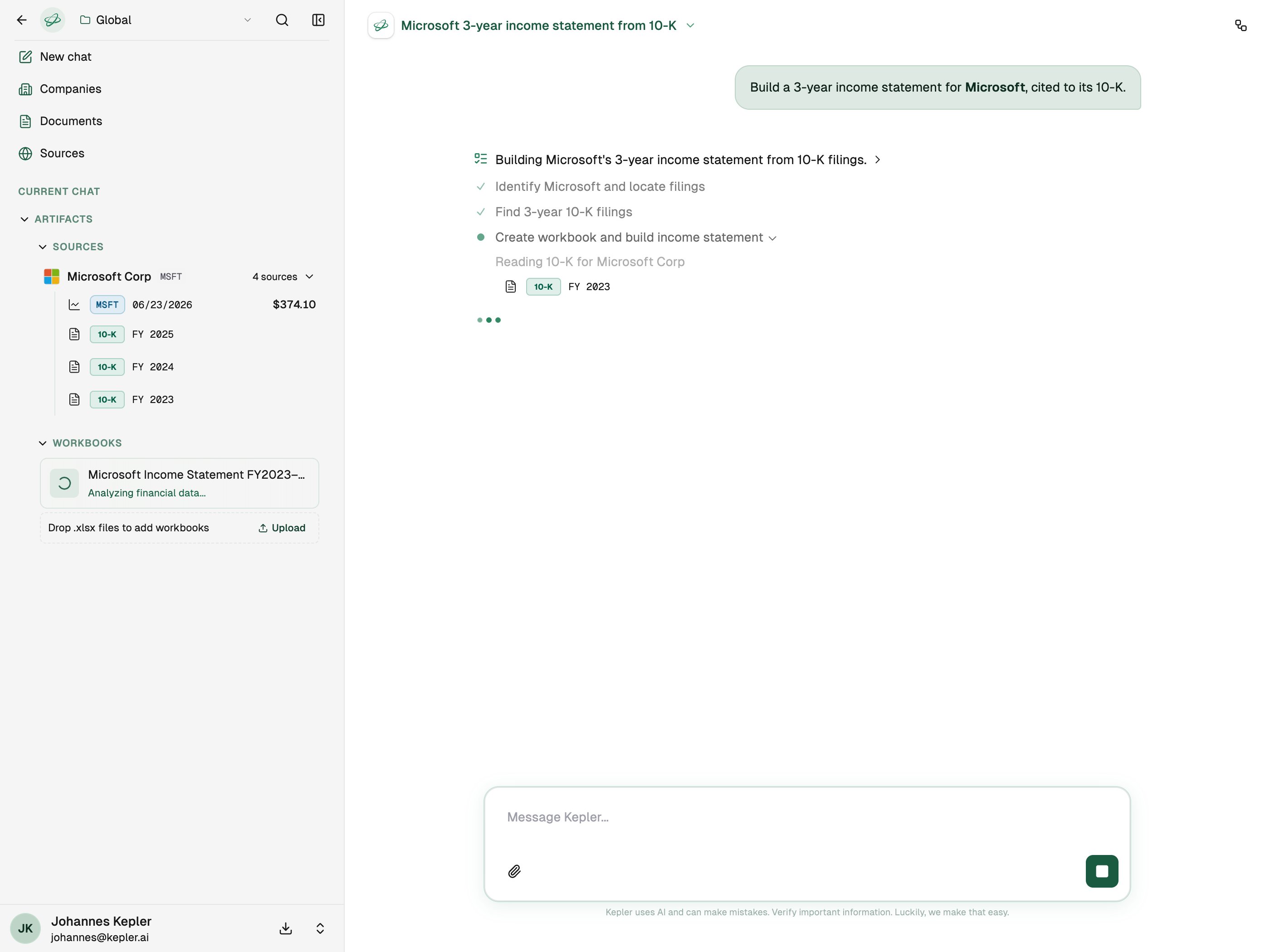
Add your own files
Click the paperclip (Attach documents) in the message box, then pick one:- Upload from your computer adds a file from your machine.
- Browse library adds files you already have in Documents.
Choose your sources
Sources may not be on for your account yet. If you don’t see it in the message box, email desk@kepler.ai and we can look at turning it on.
- Pick a profile. A profile is a saved set of sources. Yours are under Yours, profiles your colleagues share are under Shared with you, and the ones we maintain are under Built in.
- Customize for this chat. Turn single sources on or off for this chat only. Click Reset to go back to the profile, or Save these as a profile… to keep the set for later.
Create a profile
Click Sources, then Edit profiles. You can also open Settings and choose Source profiles.1
Click New profile
If you manage sources for your organization, choose Just for me or Shared with my org.
2
Choose sources
Turn each source on or off. They are grouped as built-in sources (filings, financials, transcripts, and market data we maintain), internal sources (your documents and connected apps), and web search.
3
Pick websites (optional)
Under web search, click Add a folder and add your own sites or copy one of our folders. Kepler searches Priority sources first and falls back to the wider web only if they return nothing relevant. Kepler never visits sites on the Blocklist, even if they also appear under priority.
4
Name it and save
Click the name at the top to rename the profile, then click Save.
Follow up
Ask your next question in the same chat. Kepler keeps the full context, so you can say “now do the same for Walmart” or “break that out by quarter” without repeating yourself. Below each answer you can Copy message, or mark it Good response or Bad response. Your ratings help us improve Kepler.Find and manage chats
- Search chats: press ⌘ K, or click the search icon at the bottom of the sidebar.
- Rename, copy link, or delete: click the chat title at the top of the chat.
- Share or print: see Share and export.