Click any number to see its source and how it was calculated.
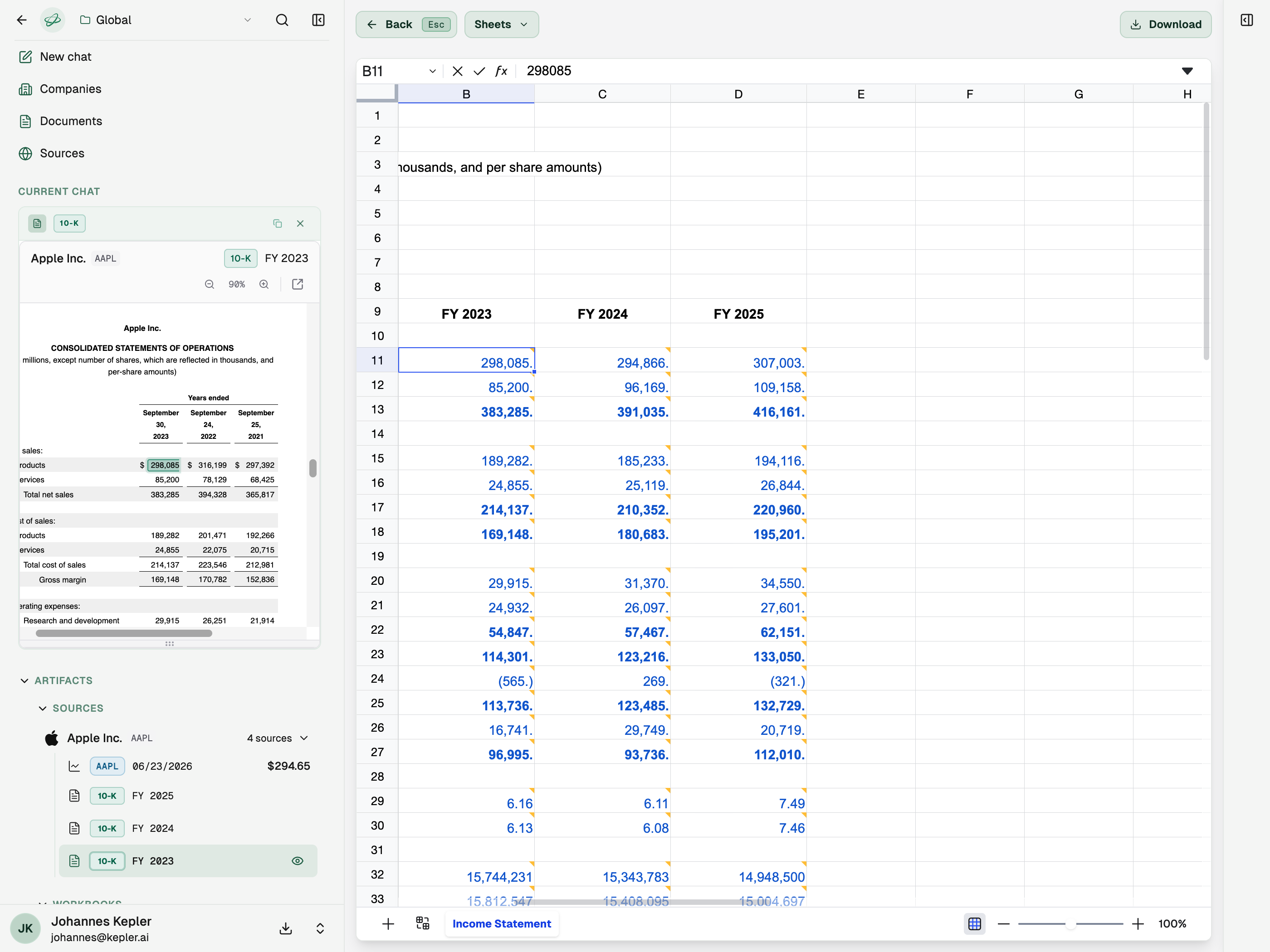
Every figure in a Kepler answer is cited. A citation is the value itself, shown as colored, underlined text. The color tells you the kind of source: a filing, a transcript, a web page, or one of your own documents.
Some figures are calculated, such as a margin, a growth rate, or enterprise value. Click one and it opens as a small spreadsheet, with the formula in a formula bar and each input in its own cell.
Click Show how … is computed on a row to open the calculation behind that input.
Click Open the source of … to open the filing or document the input came from.
The calculations run in code, so every input is one click from its source.
Open the side panel with ⌘\, or the panel button in the chat header. The Context tab shows:
Plan: the steps Kepler took to answer.
Outputs: the tables and workbooks it produced.
Sources: every filing, transcript, web page, and document it read.
Sources you open stay as tabs in the panel, so you can move between them.
{"docsConfig":{"theme":"mint","$schema":"https://mintlify.com/docs.json","name":"Kepler","colors":{"primary":"#3d6b38","light":"#6ab060","dark":"#0B1F17"},"logo":{"light":"https://mintcdn.com/kepler-a6ccf6fc/u8Nn3Wp0FYAPF9UE/logo/light.svg?fit=max\u0026auto=format\u0026n=u8Nn3Wp0FYAPF9UE\u0026q=85\u0026s=39dacd917f2d027d00d7d64d06074a4a","dark":"https://mintcdn.com/kepler-a6ccf6fc/u8Nn3Wp0FYAPF9UE/logo/dark.svg?fit=max\u0026auto=format\u0026n=u8Nn3Wp0FYAPF9UE\u0026q=85\u0026s=02a28540b0b6cf5492a9ddab8b5bd4bd","href":"https://kepler.ai"},"favicon":"https://mintcdn.com/kepler-a6ccf6fc/RVsTkAHzK349hoa0/favicon.svg?fit=max\u0026auto=format\u0026n=RVsTkAHzK349hoa0\u0026q=85\u0026s=a9bdc6c6a7065fa11c1a5c066f82621f","navbar":{"links":[{"href":"mailto:desk@kepler.ai","label":"Support"}],"primary":{"type":"button","label":"Open Kepler","href":"https://app.kepler.ai"}},"footer":{"socials":{"website":"https://kepler.ai","x":"https://x.com/kepler_ai_hq","linkedin":"https://www.linkedin.com/company/kepler"}},"seo":{"metatags":{"og:site_name":"Kepler","og:type":"website","twitter:card":"summary_large_image"},"indexing":"all"},"fonts":{"family":"Geist"},"contextual":{"options":["copy","view","claude","chatgpt","mcp","cursor","vscode"],"display":"header"},"styling":{"latex":false},"navigation":{"pages":[]}},"deployment":{"deploymentMetadataValue":{"subdomain":"kepler-a6ccf6fc","hasAudioNarration":false,"actualSubdomain":"kepler-a6ccf6fc","customDomains":["docs.kepler.ai"],"gitSource":{"type":"github","owner":"keru-ai","repo":"mintlify-docs","deployBranch":"main","contentDirectory":"","isPrivate":true,"mountPath":"","label":""},"chroma":{"collectionId":"cea4815d-e5ab-4c29-a083-63b97fded374","liveDeploymentHistoryId":"6adfcf1a61a318d1e4e88938","schemaVersion":"v3","latestBuiltDeploymentHistoryId":"6adfcf1a61a318d1e4e88938"},"entitlements":{"AI_CHAT":{"status":"DISABLED"}},"buildId":"6adfcf1a61a318d1e4e88938","clientVersion":"0.0.4044","searchFilterCounts":[{"language":"default","tag":"MCP connector","count":8},{"language":"default","tag":"Using Kepler","count":6},{"language":"default","tag":"Data connectors","count":6},{"language":"default","tag":"Documentation","count":6},{"language":"default","tag":"Reference","count":2},{"language":"default","tag":"Product updates","count":1}]},"assistantConfig":{"enableAskAiButton":false,"enableStarterQuestions":false,"enableContextualStarterQuestions":false,"enableAskAiSearchBar":true},"basePath":"","hasChatPermissions":false,"hasWebMcpPermissions":false,"toggles":[],"googleFontsInlined":true},"customCss":[],"page":{"pagePath":"app/citations","slug":"/app/citations","pageMetadata":{"title":"Citations","description":"Click any number to see its source and how it was calculated.","href":"/app/citations"},"description":{"compiledSource":"\"use strict\";\nconst {jsx: _jsx} = arguments[0];\nconst {useMDXComponents: _provideComponents} = arguments[0];\nfunction _createMdxContent(props) {\n const _components = {\n p: \"p\",\n ..._provideComponents(),\n ...props.components\n };\n return _jsx(_components.p, {\n children: \"Click any number to see its source and how it was calculated.\"\n });\n}\nfunction MDXContent(props = {}) {\n const {wrapper: MDXLayout} = {\n ..._provideComponents(),\n ...props.components\n };\n return MDXLayout ? _jsx(MDXLayout, {\n ...props,\n children: _jsx(_createMdxContent, {\n ...props\n })\n }) : _createMdxContent(props);\n}\nreturn {\n default: MDXContent\n};\n","frontmatter":{},"scope":{}},"pageType":"default","mdx":{"mdxSource":{"compiledSource":"\"use strict\";const{Fragment:_Fragment,jsx:_jsx,jsxs:_jsxs}=arguments[0];const{useMDXComponents:_provideComponents}=arguments[0];function _createMdxContent(props){const _components={li:`li`,p:`p`,strong:`strong`,ul:`ul`,..._provideComponents(),...props.components},{Frame,Heading,OptimizedImage,Tip}=_components;if(!Frame)_missingMdxReference(`Frame`,true);if(!Heading)_missingMdxReference(`Heading`,true);if(!OptimizedImage)_missingMdxReference(`OptimizedImage`,true);if(!Tip)_missingMdxReference(`Tip`,true);return _jsxs(_Fragment,{children:[_jsx(_components.p,{children:`Every figure in a Kepler answer is cited. A citation is the value itself, shown as colored, underlined text. The color tells you the kind of source: a filing, a transcript, a web page, or one of your own documents.`}),`\n`,_jsx(Heading,{level:`2`,id:`open-a-source`,children:`Open a source`}),`\n`,_jsx(_components.p,{children:`Click a citation. The source opens in the side panel next to the chat, at the cited passage, with the passage highlighted.`}),`\n`,_jsx(Frame,{children:_jsx(OptimizedImage,{src:`https://mintcdn.com/kepler-a6ccf6fc/RVsTkAHzK349hoa0/images/citation-source.png?fit=max\u0026auto=format\u0026n=RVsTkAHzK349hoa0\u0026q=85\u0026s=169a92d495b4df8df2b50f786b60bb40`,alt:`A cited value selected, with the matching value highlighted in Apple's 10-K alongside it`,\"data-og-width\":`2800`,width:`2800`,\"data-og-height\":`2100`,height:`2100`,\"data-path\":`images/citation-source.png`,\"data-optimize\":`true`,\"data-opv\":`3`,srcset:`https://mintcdn.com/kepler-a6ccf6fc/RVsTkAHzK349hoa0/images/citation-source.png?w=280\u0026fit=max\u0026auto=format\u0026n=RVsTkAHzK349hoa0\u0026q=85\u0026s=c0c1d6a4479663890f8d97729cbd6c4c 280w, https://mintcdn.com/kepler-a6ccf6fc/RVsTkAHzK349hoa0/images/citation-source.png?w=560\u0026fit=max\u0026auto=format\u0026n=RVsTkAHzK349hoa0\u0026q=85\u0026s=dcfe5045d4487e7b0ef6b0973b5d733c 560w, https://mintcdn.com/kepler-a6ccf6fc/RVsTkAHzK349hoa0/images/citation-source.png?w=840\u0026fit=max\u0026auto=format\u0026n=RVsTkAHzK349hoa0\u0026q=85\u0026s=e10e84fbaf7cc18abd4068e605bc11f3 840w, https://mintcdn.com/kepler-a6ccf6fc/RVsTkAHzK349hoa0/images/citation-source.png?w=1100\u0026fit=max\u0026auto=format\u0026n=RVsTkAHzK349hoa0\u0026q=85\u0026s=f97d031654abe591d7912e1b26c966d1 1100w, https://mintcdn.com/kepler-a6ccf6fc/RVsTkAHzK349hoa0/images/citation-source.png?w=1650\u0026fit=max\u0026auto=format\u0026n=RVsTkAHzK349hoa0\u0026q=85\u0026s=59eb78163411a1503dc44f6ef7ab114b 1650w, https://mintcdn.com/kepler-a6ccf6fc/RVsTkAHzK349hoa0/images/citation-source.png?w=2500\u0026fit=max\u0026auto=format\u0026n=RVsTkAHzK349hoa0\u0026q=85\u0026s=e2deed6471f5a06471259faac5c432ef 2500w`})}),`\n`,_jsxs(_components.ul,{children:[`\n`,_jsxs(_components.li,{children:[_jsx(_components.strong,{children:`Filings, transcripts, and decks`}),` open on the exact page.`]}),`\n`,_jsxs(_components.li,{children:[_jsx(_components.strong,{children:`Web pages`}),` open in full, scrolled to the cited passage. A label tells you whether you are reading the full text or an excerpt.`]}),`\n`,_jsxs(_components.li,{children:[_jsx(_components.strong,{children:`Spreadsheets`}),` open as Excel shows them, on the cited cell, with the formula bar above the grid.`]}),`\n`]}),`\n`,_jsxs(_components.p,{children:[`To open a source as a full page in a new browser tab, hold `,_jsx(`kbd`,{children:`⌘`}),` and click the citation.`]}),`\n`,_jsx(Tip,{children:_jsxs(_components.p,{children:[`Press `,_jsx(`kbd`,{children:`[`}),` and `,_jsx(`kbd`,{children:`]`}),` to step through the citations in an answer. Press `,_jsx(`kbd`,{children:`⌘`}),` `,_jsx(`kbd`,{children:`F`}),` to search inside an open document.`]})}),`\n`,_jsx(Heading,{level:`2`,id:`see-how-a-number-was-calculated`,children:`See how a number was calculated`}),`\n`,_jsx(_components.p,{children:`Some figures are calculated, such as a margin, a growth rate, or enterprise value. Click one and it opens as a small spreadsheet, with the formula in a formula bar and each input in its own cell.`}),`\n`,_jsxs(_components.ul,{children:[`\n`,_jsxs(_components.li,{children:[`Click `,_jsx(_components.strong,{children:`Show how … is computed`}),` on a row to open the calculation behind that input.`]}),`\n`,_jsxs(_components.li,{children:[`Click `,_jsx(_components.strong,{children:`Open the source of …`}),` to open the filing or document the input came from.`]}),`\n`]}),`\n`,_jsx(_components.p,{children:`The calculations run in code, so every input is one click from its source.`}),`\n`,_jsx(Heading,{level:`2`,id:`see-everything-a-chat-read`,children:`See everything a chat read`}),`\n`,_jsxs(_components.p,{children:[`Open the side panel with `,_jsx(`kbd`,{children:`⌘`}),` `,_jsx(`kbd`,{children:`\\\\`}),`, or the panel button in the chat header. The `,_jsx(_components.strong,{children:`Context`}),` tab shows:`]}),`\n`,_jsxs(_components.ul,{children:[`\n`,_jsxs(_components.li,{children:[_jsx(_components.strong,{children:`Plan:`}),` the steps Kepler took to answer.`]}),`\n`,_jsxs(_components.li,{children:[_jsx(_components.strong,{children:`Outputs:`}),` the tables and workbooks it produced.`]}),`\n`,_jsxs(_components.li,{children:[_jsx(_components.strong,{children:`Sources:`}),` every filing, transcript, web page, and document it read.`]}),`\n`]}),`\n`,_jsx(_components.p,{children:`Sources you open stay as tabs in the panel, so you can move between them.`})]})}function MDXContent(props={}){const{wrapper:MDXLayout}={..._provideComponents(),...props.components};return MDXLayout?_jsx(MDXLayout,{...props,children:_jsx(_createMdxContent,{...props})}):_createMdxContent(props)}return{default:MDXContent};function _missingMdxReference(id,component){throw new Error(`Expected `+(component?`component`:`object`)+\" `\"+id+\"` to be defined: you likely forgot to import, pass, or provide it.\")}","frontmatter":{},"scope":{"config":{},"pageMetadata":{"title":"Citations","description":"Click any number to see its source and how it was calculated.","href":"/app/citations"}}},"mdxSourceWithNoJs":null},"mdxExtracts":{"tableOfContents":[{"title":"Open a source","slug":"open-a-source","depth":2,"children":[]},{"title":"See how a number was calculated","slug":"see-how-a-number-was-calculated","depth":2,"children":[]},{"title":"See everything a chat read","slug":"see-everything-a-chat-read","depth":2,"children":[]}],"codeExamples":{}},"jsLinks":[],"subdomain":"kepler-a6ccf6fc","siteName":"Kepler","title":"Citations - Kepler","navMaps":{"firstHrefInVersion":{},"firstHrefInLanguage":{}},"lastModified":"2026-10-26T21:43:50.343Z","originalFileLocation":"app/citations.mdx"},"headHtml":"\u003cscript data-mint-head>(function(){var d=document.documentElement,p=null;if(!p){try{p=localStorage.getItem(\"isDarkMode\")}catch(e){}if(p==='true')p='dark';else if(p==='false')p='light';if(p!=='light'\u0026\u0026p!=='dark'\u0026\u0026p!=='system')p=\"system\"}var r=p==='system'?(matchMedia(\"(prefers-color-scheme: dark)\").matches?'dark':'light'):p;d.classList.remove(r==='dark'?'light':'dark');d.classList.add(r);d.setAttribute(\"data-theme-preference\",p)})();\u003c/script>\u003cmeta data-mint-head name=\"description\" content=\"Click any number to see its source and how it was calculated.\">\u003cmeta data-mint-head name=\"application-name\" content=\"Kepler\">\u003cmeta data-mint-head name=\"generator\" content=\"Mintlify\">\u003clink data-mint-head rel=\"icon\" type=\"image/png\" sizes=\"192x192\" href=\"/mintlify-assets/_mintlify/favicons/kepler-a6ccf6fc/IVOzyYh328xbeCzL/_generated/favicon/android-chrome-192x192.png\" media=\"(prefers-color-scheme: light)\">\u003clink data-mint-head rel=\"apple-touch-icon\" type=\"image/png\" sizes=\"180x180\" href=\"/mintlify-assets/_mintlify/favicons/kepler-a6ccf6fc/IVOzyYh328xbeCzL/_generated/favicon/apple-touch-icon.png\">\u003clink data-mint-head rel=\"icon\" type=\"image/png\" sizes=\"16x16\" href=\"/mintlify-assets/_mintlify/favicons/kepler-a6ccf6fc/IVOzyYh328xbeCzL/_generated/favicon/favicon-16x16.png\" media=\"(prefers-color-scheme: light)\">\u003clink data-mint-head rel=\"icon\" type=\"image/png\" sizes=\"32x32\" href=\"/mintlify-assets/_mintlify/favicons/kepler-a6ccf6fc/IVOzyYh328xbeCzL/_generated/favicon/favicon-32x32.png\" media=\"(prefers-color-scheme: light)\">\u003clink data-mint-head rel=\"shortcut icon\" type=\"image/x-icon\" href=\"/mintlify-assets/_mintlify/favicons/kepler-a6ccf6fc/IVOzyYh328xbeCzL/_generated/favicon/favicon.ico\" media=\"(prefers-color-scheme: light)\">\u003clink data-mint-head rel=\"icon\" type=\"image/png\" sizes=\"192x192\" href=\"/mintlify-assets/_mintlify/favicons/kepler-a6ccf6fc/IVOzyYh328xbeCzL/_generated/favicon-dark/android-chrome-192x192.png\" media=\"(prefers-color-scheme: dark)\">\u003clink data-mint-head rel=\"icon\" type=\"image/png\" sizes=\"16x16\" href=\"/mintlify-assets/_mintlify/favicons/kepler-a6ccf6fc/IVOzyYh328xbeCzL/_generated/favicon-dark/favicon-16x16.png\" media=\"(prefers-color-scheme: dark)\">\u003clink data-mint-head rel=\"icon\" type=\"image/png\" sizes=\"32x32\" href=\"/mintlify-assets/_mintlify/favicons/kepler-a6ccf6fc/IVOzyYh328xbeCzL/_generated/favicon-dark/favicon-32x32.png\" media=\"(prefers-color-scheme: dark)\">\u003clink data-mint-head rel=\"shortcut icon\" type=\"image/x-icon\" href=\"/mintlify-assets/_mintlify/favicons/kepler-a6ccf6fc/IVOzyYh328xbeCzL/_generated/favicon-dark/favicon.ico\" media=\"(prefers-color-scheme: dark)\">\u003cmeta data-mint-head property=\"og:title\" content=\"Citations - Kepler\">\u003cmeta data-mint-head property=\"og:description\" content=\"Click any number to see its source and how it was calculated.\">\u003cmeta data-mint-head property=\"og:site_name\" content=\"Kepler\">\u003cmeta data-mint-head property=\"og:url\" content=\"https://docs.kepler.ai/app/citations\">\u003cmeta data-mint-head property=\"og:type\" content=\"website\">\u003cmeta data-mint-head property=\"og:image\" content=\"https://kepler-a6ccf6fc.mintlify.app/_mintlify/api/og/v2?division=Using+Kepler\u0026amp;title=Citations\u0026amp;description=Click+any+number+to+see+its+source+and+how+it+was+calculated.\u0026amp;theme=6a0199a9e020dde8e0e1577b\u0026amp;signature=2ec864867fcf81607848787177370d40139b3dfb589c4d0c2bfec25fd12f7fc3\">\u003cmeta data-mint-head property=\"og:image:width\" content=\"1200\">\u003cmeta data-mint-head property=\"og:image:height\" content=\"630\">\u003cmeta data-mint-head name=\"twitter:card\" content=\"summary_large_image\">\u003cmeta data-mint-head name=\"twitter:title\" content=\"Citations - Kepler\">\u003cmeta data-mint-head name=\"twitter:description\" content=\"Click any number to see its source and how it was calculated.\">\u003cmeta data-mint-head name=\"twitter:image\" content=\"https://kepler-a6ccf6fc.mintlify.app/_mintlify/api/og/v2?division=Using+Kepler\u0026amp;title=Citations\u0026amp;description=Click+any+number+to+see+its+source+and+how+it+was+calculated.\u0026amp;theme=6a0199a9e020dde8e0e1577b\u0026amp;signature=2ec864867fcf81607848787177370d40139b3dfb589c4d0c2bfec25fd12f7fc3\">\u003cmeta data-mint-head name=\"twitter:image:width\" content=\"1200\">\u003cmeta data-mint-head name=\"twitter:image:height\" content=\"630\">\u003cmeta data-mint-head name=\"msapplication-config\" content=\"/mintlify-assets/_mintlify/favicons/kepler-a6ccf6fc/IVOzyYh328xbeCzL/_generated/favicon/browserconfig.xml\">\u003cmeta data-mint-head name=\"apple-mobile-web-app-title\" content=\"Kepler\">\u003cmeta data-mint-head name=\"msapplication-TileColor\" content=\"#3d6b38\">\u003clink data-mint-head rel=\"canonical\" href=\"https://docs.kepler.ai/app/citations\">\u003clink data-mint-head rel=\"alternate\" type=\"application/xml\" href=\"/sitemap.xml\">\u003clink data-mint-head rel=\"alternate\" type=\"text/markdown\" href=\"/app/citations.md\">\u003cscript data-mint-head type=\"application/ld+json\">{\"@context\":\"https://schema.org\",\"@graph\":[{\"@type\":\"Organization\",\"@id\":\"https://docs.kepler.ai/#organization\",\"name\":\"Kepler\",\"url\":\"https://docs.kepler.ai\",\"logo\":{\"@type\":\"ImageObject\",\"url\":\"https://mintcdn.com/kepler-a6ccf6fc/u8Nn3Wp0FYAPF9UE/logo/light.svg?fit=max\u0026auto=format\u0026n=u8Nn3Wp0FYAPF9UE\u0026q=85\u0026s=39dacd917f2d027d00d7d64d06074a4a\"}},{\"@type\":\"WebSite\",\"@id\":\"https://docs.kepler.ai#website\",\"name\":\"Kepler\",\"url\":\"https://docs.kepler.ai\",\"publisher\":{\"@id\":\"https://docs.kepler.ai/#organization\"}},{\"@type\":\"WebPage\",\"@id\":\"https://docs.kepler.ai/app/citations#webpage\",\"url\":\"https://docs.kepler.ai/app/citations\",\"name\":\"Citations\",\"description\":\"Click any number to see its source and how it was calculated.\",\"dateModified\":\"2026-10-26T21:43:50.343Z\",\"isPartOf\":{\"@id\":\"https://docs.kepler.ai#website\"},\"breadcrumb\":{\"@id\":\"https://docs.kepler.ai/app/citations#breadcrumb\"}},{\"@type\":\"BreadcrumbList\",\"@id\":\"https://docs.kepler.ai/app/citations#breadcrumb\",\"itemListElement\":[{\"@type\":\"ListItem\",\"position\":1,\"name\":\"Using Kepler\",\"item\":\"https://docs.kepler.ai/app/chats\"},{\"@type\":\"ListItem\",\"position\":2,\"name\":\"Citations\",\"item\":\"https://docs.kepler.ai/app/citations\"}]},{\"@type\":[\"Article\",\"TechArticle\"],\"@id\":\"https://docs.kepler.ai/app/citations#article\",\"headline\":\"Citations\",\"name\":\"Citations\",\"description\":\"Click any number to see its source and how it was calculated.\",\"url\":\"https://docs.kepler.ai/app/citations\",\"mainEntityOfPage\":{\"@id\":\"https://docs.kepler.ai/app/citations#webpage\"},\"dateModified\":\"2026-10-26T21:43:50.343Z\",\"publisher\":{\"@id\":\"https://docs.kepler.ai/#organization\"},\"isPartOf\":{\"@id\":\"https://docs.kepler.ai#website\"}}]}\u003c/script>\u003cscript data-mint-head type=\"application/ld+json\">{\"@context\":\"https://schema.org\",\"@type\":\"WebSite\",\"name\":\"Kepler\",\"creator\":{\"@type\":\"Organization\",\"name\":\"Mintlify\",\"url\":\"https://mintlify.com\"}}\u003c/script>","siteName":"Kepler","nav":{"global":null,"groups":[{"group":"Documentation","pages":[{"title":"Welcome to Kepler","href":"/index"},{"title":"Quickstart","href":"/quickstart"},{"title":"Frequently asked questions","href":"/faq"},{"title":"Single sign-on","href":"/sso"},{"title":"Glossary","href":"/glossary"},{"title":"Contact us","href":"/contact"}]},{"group":"Using Kepler","pages":[{"title":"Chats","description":"Ask questions, add your own files, choose your sources, and follow up in the same thread.","href":"/app/chats"},{"title":"Citations","href":"/app/citations"},{"title":"Company pages","description":"Filings, transcripts, financial statements, and analyst data for a company in one place.","href":"/app/company-pages"},{"title":"Documents","href":"/app/documents"},{"title":"Workflows","href":"/app/workflows"},{"title":"Share and export","href":"/app/share-and-export"}]},{"group":"Product updates","pages":[{"title":"Release notes","href":"/release-notes"}]},{"group":"MCP connector","pages":[{"title":"Kepler MCP connector","href":"/mcp/overview"},{"title":"Web app or connector","href":"/mcp/app-vs-connector"},{"title":"Connect a client","href":"/mcp/connect"},{"title":"Example workflows","href":"/mcp/examples"},{"title":"Best practices","href":"/mcp/best-practices"},{"title":"Data handling and privacy","href":"/mcp/data-handling"},{"group":"Reference","expanded":false,"pages":[{"title":"Tools reference","href":"/mcp/tools"},{"title":"Prompts","href":"/mcp/prompts"}]}]},{"group":"Data connectors","pages":[{"title":"Data connectors","href":"/connectors/overview"},{"title":"Google Drive","tag":"COMING SOON","href":"/connectors/google-drive"},{"title":"OneDrive","href":"/connectors/onedrive"},{"title":"OneNote","tag":"COMING SOON","href":"/connectors/onenote"},{"title":"SharePoint","href":"/connectors/sharepoint"},{"title":"Slack","href":"/connectors/slack"}]}]},"basePath":"","title":"Citations - Kepler","buildId":"dpl_DeHjVRGfFnhYQwHnfC2pjeXXv8h9","deploymentId":"dpl_DeHjVRGfFnhYQwHnfC2pjeXXv8h9","dynamics":["07c022d89b","a74be98ba7"],"chunks":["Frame-DXXFP6nH.js","DynamicMarkdown-B54_zNBF.js","zoom-image-lightbox-BG6oD64b.js","lightbox-handle-r17bVUz3.js"]}